






Load balancing File Transfer Protocol and FTPS Servers
Updated on November 5, 2026
•
Published on March 8, 2023
Benefits of load balancing File Transfer Protocol (FTP)
Load balancing File Transfer Protocol offers a number of benefits, including:
- High Availability (HA): Load balancing ensures that if one FTP/FTPS server fails or is taken offline for maintenance, traffic is automatically and instantly redirected to the remaining available servers in the pool. This prevents service disruption and guarantees that file transfers can continue without interruption, providing near-continuous uptime.
- Scalability and performance: Load balancers distribute incoming client connection requests across multiple servers, preventing any single server from becoming overwhelmed. This parallel processing allows the system to handle a higher volume of concurrent users and file transfers (scalability) while maintaining optimal performance (faster response times and transfer speeds). When demand increases, you can simply add more servers to the farm.
- Improved security: A load balancer can act as a reverse proxy, shielding the backend FTP/FTPS servers from direct exposure to the internet. This provides an additional layer of security by hiding the servers’ internal IP addresses. Load balancers can also offer protection against Distributed Denial of Service (DDoS) attacks by absorbing or filtering malicious traffic before it reaches the file transfer servers. For FTPS (which uses SSL/TLS encryption), a load balancer can handle the SSL/TLS offloading, decrypting the secure connection before passing the traffic to the backend servers. This reduces the computational load on the application servers, freeing up resources for file transfer tasks.
About (FTP) File Transfer Protocol
File Transfer Protocol also known as FTP is a protocol that is used to transfer files between computers on a network.
Using FTP grants users and computers the ability to exchange and transfer files between servers, desktop computers, online accounts and online software archives.
Why Loadbalancer.org for FTP?
Loadbalancer’s intuitive Enterprise Application Delivery Controller (ADC) is designed to save time and money with a clever, not complex, WebUI.
Easily configure, deploy, manage, and maintain our Enterprise load balancer, reducing complexity and the risk of human error. For a difference you can see in just minutes.
And with WAF and GSLB included straight out-of-the-box, there’s no hidden costs, so the prices you see on our website are fully transparent.
More on what’s possible with Loadbalancer.org.
How to load balance (FTP) File Transfer Protocol
FTP can be used either at command line or via FTP applications that provide a graphical user interface such as Cyberduck (for Mac) and Filezilla (for Windows).
However, in the real world FTP sites are heavily used and may require several attempts before being able to connect and exchange the necessary files. This is where introducing a load balancer can alleviate cumbersome connections by load balancing network traffic to other available FTP servers within the VIP cluster, ensuring high availability and scalability of the environment.
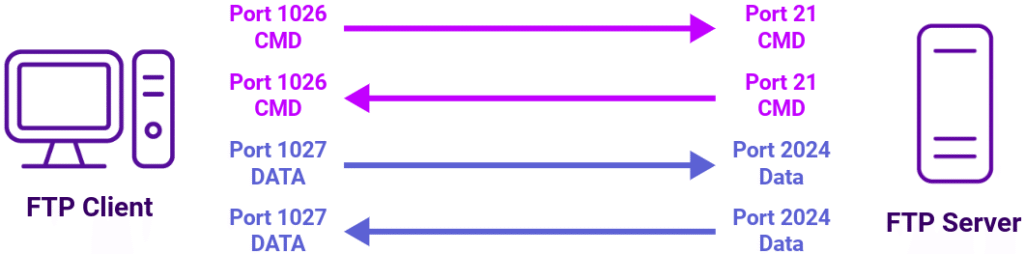
FTP provides two modes of operation, Active and Passive mode.
In active mode, the FTP server connects back to the client so client source IP transparency is a must. That’s ok though as Layer 4 has this is enabled out of the box, however, layer 7 requires Tproxy to be enabled and that comes with the caveat of needing two subnets; one for the VIP and the other for the FTP servers.
Alternatively, in passive mode, all connections are initiated by the client, meaning the FTP server then sends the client a port to use for the inbound data connection which can be a wide range of ports and, as such, it is useful to limit this port range.
| Protocol | Port | Load balancing methods |
|---|---|---|
| FTP-Active | 20,21 | Layer 4 NAT (Recommended): Traditional NAT mode provides easy implementation fast and transparent load balancing but usually requires a two-arm configuration (two subnets). Layer 7 Reverse Proxy: Tproxy must be enabled for transparency and two subnets must be used. |
| FTP-Passive | 21,high_port | Layer 4 NAT (Recommended) or Layer 7 Reverse Proxy |
Let’s look at a couple of examples for two distinct ecosystems and use cases.
How to load balance SFTPGo
If you’re deploying in containers, cloud environments, or Linux, SFTPGo is the standard choice.
As an open-source, modern Go-based server, SFTPGo has become the default self-hosted and cloud-native file transfer solution. It boasts tens of millions of container pulls and over 12,000 GitHub stars. It is heavily adopted across Linux, Kubernetes/Docker, and multi-cloud environments (AWS S3, Azure Blob, Google Cloud Storage backends).
The load balancer can be deployed in four fundamental ways: Layer 4 DR mode, Layer 4 NAT mode, Layer 4 SNAT mode, and Layer 7 Reverse Proxy (Layer 7 SNAT mode).
For SFTPGo, our recommendation is to use the following:
- Layer 4 SNAT mode for the SFTP Virtual Service, where raw throughput matters most and where no
application layer processing is needed. - Layer 7 Reverse Proxy for the FTP and WebDAV Virtual Services. FTP passive mode needs a multi-port
service with source IP persistence, and WebDAV benefits from an HTTP level health check and HTTP cookie
persistence. Layer 7 is also the mode to use for SFTP if the real client IP addresses must be visible to the
SFTPGo nodes, since it can send the PROXY protocol.
Neither mode requires any mode specific configuration changes on the SFTPGo nodes – there is no “ARP
problem” to solve, and the SFTPGo nodes can be on any network reachable from the load balancer.
Refer to the SFTPGo deployment guide below for full details.
SFTPGo virtual service (VIP) requirements
To provide load balancing and HA for SFTPGo, the following VIPs are required:
| Ref. | VIP Name | Mode | Port(s) | Persistence Mode | Health Check |
|---|---|---|---|---|---|
| VIP 1 | SFTPGo-SFTP | Layer 4 SNAT | 2022 | Source IP, 1200s | Connect to port 2022 |
| VIP 1 (alt) | SFTPGo-SFTP | Layer 7 TCP | 2022 | Source IP, 20 mins | Connect to port 2022 |
| VIP 2 | SFTPGo-FTP | Layer 7 TCP | 2121, 50000- 50100 | Source IP, 20 mins | Connect to port 2121 |
| VIP 3 | SFTPGo-WebDAV | Layer 7 HTTP | 10085 | HTTP Cookie | Negotiate HTTP (GET) |
Important note
The two variants of VIP 1 are mutually exclusive alternatives – configure one or the other, never both. Use the Layer 4 SNAT variant for maximum throughput. The SFTPGo nodes will log the load balancer’s IP address as the client address. Use the layer 7 TCP variant if the real client IP addresses must be visible to SFTPGo. This variant sends the PROXY protocol, which requires a matching configuration change on the SFTPGo nodes.
They cannot be run side by side for two reasons. Firstly, a Layer 4 SNAT mode VIP and a Layer 7 Reverse Proxy mode VIP must not share the same RIP:PORT combination because the required firewall rules conflict. Secondly, once proxy_protocol is enabled on the SFTPGo nodes with the load balancer listed in proxy_allowed, SFTPGo expects a PROXY header on connections arriving
from the load balancer – so connections arriving from the Layer 4 VIP, which does not send one, would fail.
SFTPGo Load balancing deployment concept
Once the load balancer is deployed, clients connect to the Virtual Services (VIPs) rather than connecting directly
to one of the SFTPGo nodes. These connections are then load balanced across the SFTPGo nodes to distribute
the load according to the load balancing algorithm selected. All nodes share a single PostgreSQL data provider
and a single file store, so each node presents an identical view of users and files.
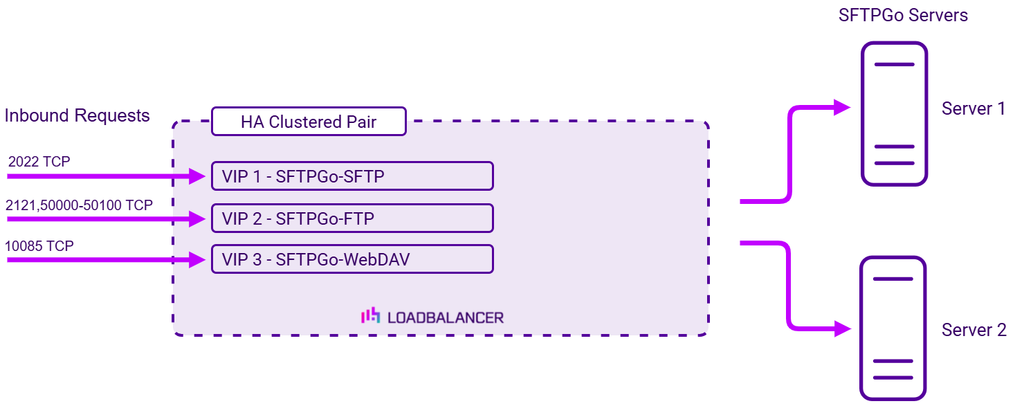
The diagram above shows the inbound client traffic paths only. Not shown, but equally essential, is what sits
behind the nodes: every SFTPGo server also connects to the shared PostgreSQL data provider and the shared
file storage, and it is those two shared resources that make the nodes interchangeable.
How to load balance Cerberus FTP Server
If you manage a strictly on-premise Windows Server environment requiring commercial support and native Active Directory access control, Cerberus is commonly found in those corporate stacks.
Cerberus is a commercial, proprietary solution (part of Redwood Software) with a long history (dating back to 2001). It has a smaller footprint by install count compared to free open-source software, but it has strong enterprise retention among Windows-centric IT departments, financial institutions, healthcare providers, and organizations needing native Active Directory integration, dedicated vendor SLAs, and turnkey FIPS 140-2/3 validation.
The load balancer can be deployed in four fundamental ways: Layer 4 DR mode, Layer 4 NAT mode, Layer 4 SNAT mode, and Layer 7 Reverse Proxy (Layer 7 SNAT mode).
For Cerberus FTP server, our recommendation is to use Layer 7 Reverse Proxy.
Refer to the Cerberus FTP deployment guide below for full details.
Cerberus FTP server virtual service (VIP) requirements
To provide load balancing and HA for Cerberus FTP Server, the following VIPs are required:
| Ref. | VIP Name | Mode | Port(s) | Persistence Mode | Health Check |
|---|---|---|---|---|---|
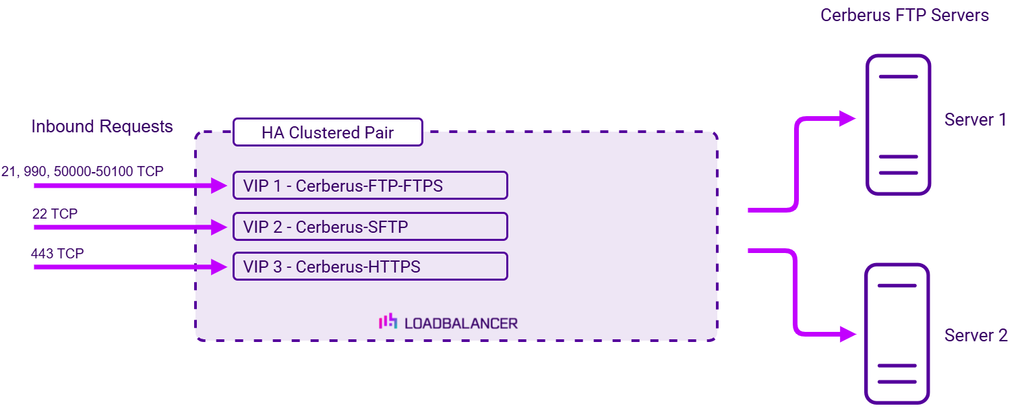
| VIP 1 | Cerberus-FTP-FTPS | L7 Reverse Proxy (TCP) | 21, 990, 50000-50100 | Source IP | Connect to Port (21) |
| VIP 2 | Cerberus-SFTP | L7 Reverse Proxy (TCP) | 22 | Source IP | Connect to Port (22) |
| VIP 3 | Cerberus-HTTPS | L7 Reverse Proxy (TCP) | 443 | Source IP | Connect to Port (443) |
Cerberus FTP server load balancing deployment concept
Once the load balancer is deployed, clients connect to the Virtual Services (VIPs) rather than connecting directly
to one of the Cerberus servers. These connections are then load balanced across the Cerberus servers to
distribute the load according to the load balancing algorithm selected.